대화상자 | Views | Android Developers
이 페이지는 Cloud Translation API를 통해 번역되었습니다. 대화상자 컬렉션을 사용해 정리하기 내 환경설정을 기준으로 콘텐츠를 저장하고 분류하세요. Compose 사용해 보기 Jetpack Compose는 Android에 권
developer.android.com
오늘은 코틀린에서 새로운 창을 띄우는 방법을 알아보도록 하자. 해당 포스트를 작성하는 데는 위의 링크를 참고하였다.
코틀린 다이얼로그란 사용자의 응답을 받거나 정보를 전달하기 위해 화면에 표시되는 대화상자이며(화면 전환과는 다르다) , 오늘은 새 프로젝트에서 진행하고자 한다. 하단의 링크를 참고하여 "Empty Views Activity"를 생성해 주자.
[Android] 개발 시작하기 - Kotlin 프로젝트 생성
1. "New Project" 클릭 2. Activity 선택 3. 프로젝트 및 패키지 이름 설정 4. 프로젝트 생성 완료생성 완료 후 잠시 대기완료
lg2ivl3.tistory.com
1. 버튼 추가하기
먼저 아래와 같이 버튼을 생성해 주자. 버튼은 다이얼로그를 띄우는 용도로 사용할 것이다.

2. 다이얼로그 추가하기
상단의 공식 문서를 참고하여 다이얼로그를 추가해 보자. 가장 기본적인 다이얼로그로 기능은 title과 message를 출력하는 다이얼로그를 추가할 예정이다.
먼저 코드의 상단에 "AlertDialog"를 import 해 주자.
import androidx.appcompat.app.AlertDialog버튼을 클릭하면 다이얼로그가 띄워질 수 있도록 위에서 추가한 버튼의 setOnClickListener 안에 아래 코드를 추가해 주었다.
val builder: AlertDialog.Builder = AlertDialog.Builder(this)
builder
    .setMessage("I am the message")
    .setTitle("I am the title")

val dialog: AlertDialog = builder.create()
dialog.show()
3. 동작 확인
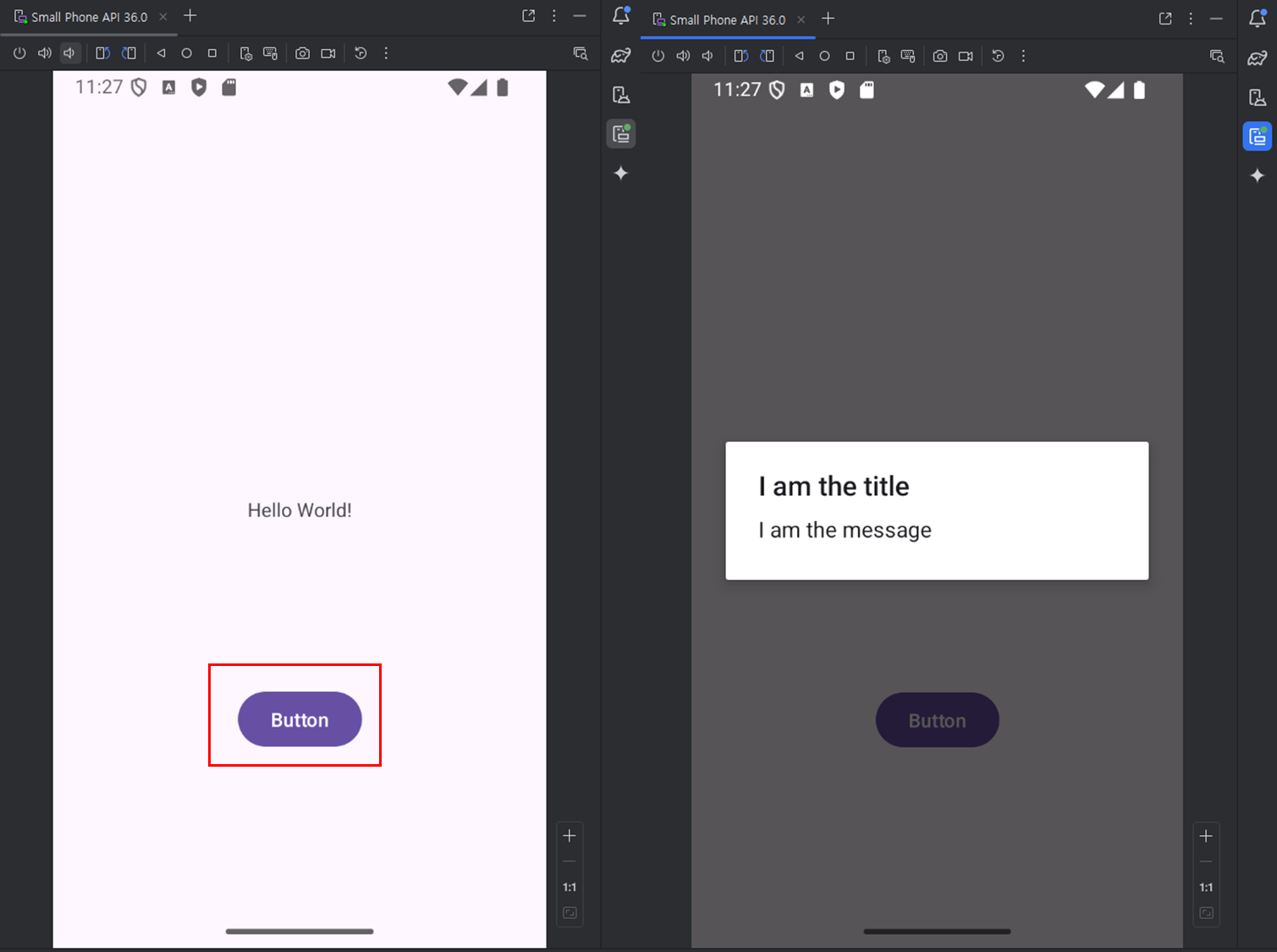
버튼을 클릭하면 정상적으로 다이얼로그가 실행되는 것을 확인할 수 있다.
전체 코드는 아래와 같다.
package com.application.myapplication

import android.os.Bundle
import androidx.activity.enableEdgeToEdge
import androidx.appcompat.app.AppCompatActivity
import androidx.core.view.ViewCompat
import androidx.core.view.WindowInsetsCompat
import android.widget.Button
import androidx.appcompat.app.AlertDialog

class MainActivity : AppCompatActivity() {
    override fun onCreate(savedInstanceState: Bundle?) {
        super.onCreate(savedInstanceState)
        enableEdgeToEdge()
        setContentView(R.layout.activity_main)
        ViewCompat.setOnApplyWindowInsetsListener(findViewById(R.id.main)) { v, insets ->
            val systemBars = insets.getInsets(WindowInsetsCompat.Type.systemBars())
            v.setPadding(systemBars.left, systemBars.top, systemBars.right, systemBars.bottom)
            insets
        }
        val testButton  : Button = findViewById(R.id.button)
        testButton.setOnClickListener {
            val builder: AlertDialog.Builder = AlertDialog.Builder(this)
            builder
                .setMessage("I am the message")
                .setTitle("I am the title")

            val dialog: AlertDialog = builder.create()
            dialog.show()
        }
    }
}'[Develop] > [Android]' 카테고리의 다른 글
| [Android] 개발 시작하기 - Kotlin 다이얼로그 버튼 추가 (0) | 2025.09.14 |
|---|---|
| [Android] 개발 시작하기 - Android Studio 로그 확인하기 (0) | 2025.09.04 |
| [Android] 개발 시작하기 - RoomDB 사용하기 (3) (0) | 2025.09.02 |
| [Android] 개발 시작하기 - Kotlin EditText로 값 입력받기 (0) | 2025.08.29 |
| [Android] 개발 시작하기 - RoomDB 사용하기 (2) (0) | 2025.08.26 |